Choose your artwork
Select an unlocked RGB or CMYK pixel layer, or choose the channel you want to convert.
 LCS Pluginsby Learn Color Separation
Create halftones and dither directly in Photoshop. Work with layers, channels or CMYK components, preserve your source artwork, and keep layer colors with bitmap masks.
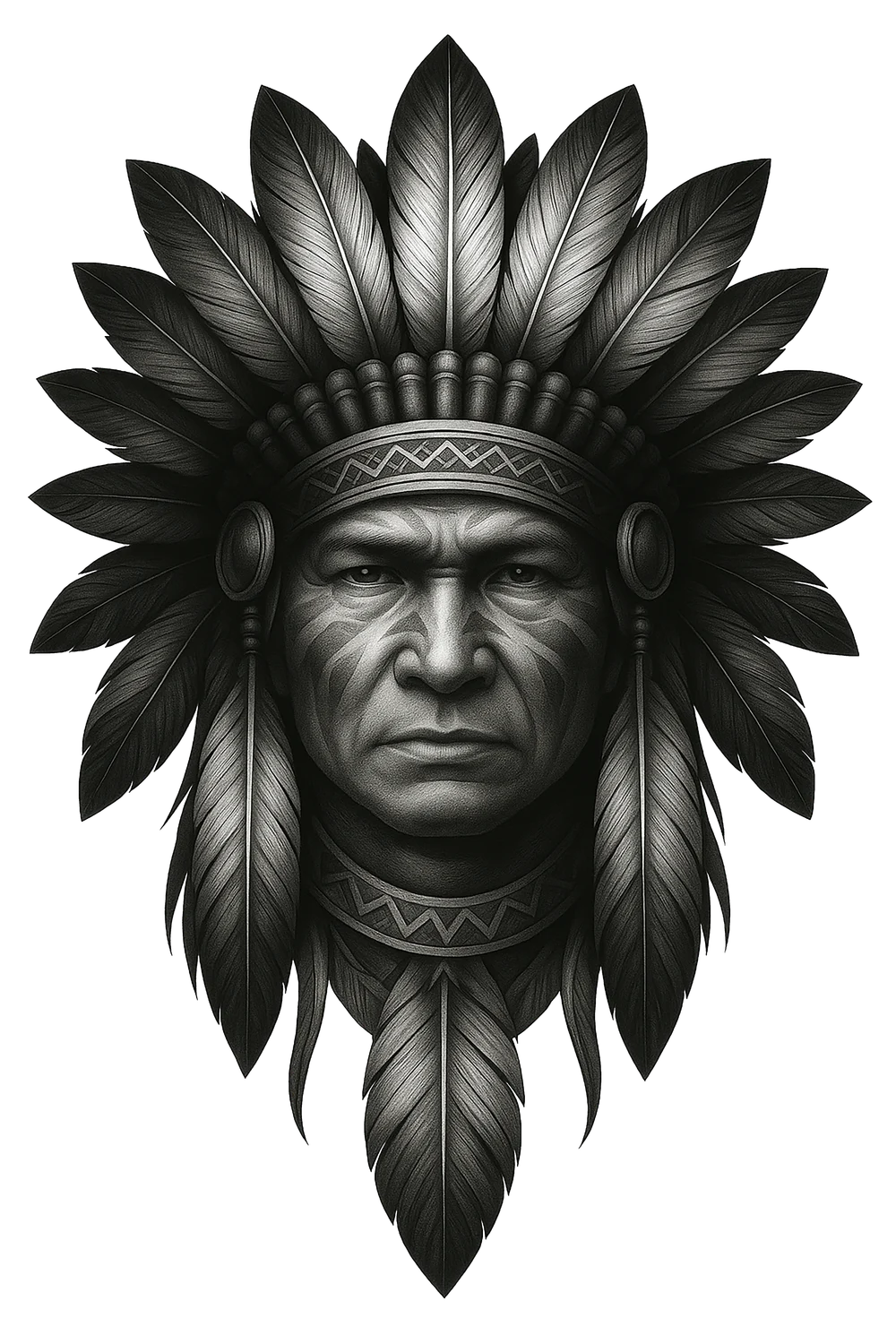 ORIGINALILLUSTRATIVE HALFTONE
Control dot shape, frequency and angle with Halftone Screen. Choose dither for a pixel-based texture, or Threshold for a direct black-and-white result.
Choose the spacing of the dots, the direction of the screen and the shape of each dot.
METHOD ILLUSTRATION01 / Halftone ScreenUse Diffusion Dither for a scattered, grain-like texture without a regular halftone grid.
METHOD ILLUSTRATION02 / Diffusion DitherUse Pattern Dither to turn tonal values into an ordered, repeating arrangement of black and white pixels.
METHOD ILLUSTRATION03 / Pattern DitherUse 50% Threshold when you want a direct split: darker tones become black and lighter tones become white.
METHOD ILLUSTRATION04 / 50% ThresholdChoose the workflow that matches your document. Layer, Channel and CMYK each keep their own presets, so you can return to the settings you use most.
Start with an unlocked RGB pixel layer. Use Color artwork and Original Colors to keep its colors with a bitmap mask, or choose Separation for artwork prepared for a single ink.
RGB pixel layer
Choose a bitmap methodWork with a single channel, or batch spot and alpha channels. Give each separation its own halftone settings while retaining the source channels.
Spot or alpha channels
Choose a bitmap methodSelect an unlocked pixel layer in a CMYK document, then choose the Cyan, Magenta, Yellow and Black components you want to convert.
CMYK pixel layer
Choose a bitmap methodUse document PPI or a custom resolution in every workflow. A different PPI creates a new output document while keeping print dimensions and artwork position.
Choose the artwork, set the method and resolution, then review the result with your source still available.
Select an unlocked RGB or CMYK pixel layer, or choose the channel you want to convert.
Choose Halftone Screen, Diffusion Dither, Pattern Dither or 50% Threshold, then set the output resolution.
Review the bitmap result while your original layer or channel remains available.
Choose monthly billing for flexibility, or pay yearly to save 36%. Both plans include every Bitmap Helper PRO feature.
MONTHLY & YEARLY SUBSCRIPTIONSFull access, billed one month at a time.
For ongoing work, with a lower monthly equivalent.
Cancellation stops future renewals. Your access continues until the end of your paid period.
Plans are priced in USD: $9/month or $69/year, paid upfront. Purchases are not open yet. Try the plugin free for 3 days without a card.
Install the plugin, follow a complete Layer conversion and find help with activation or output when you need it.
Install the CCX, find the panel in Photoshop and follow the License page.
Read guide ↗02 · START CREATINGFollow a Layer conversion, from choosing artwork to creating a color-preserving bitmap mask.
Read guide ↗03 · EXPLORE THE GUIDESFind conversion steps and help with common setup and activation issues.
Explore tutorials ↗Adobe Photoshop 25.5 or later on Windows or macOS. Install the supplied CCX through Creative Cloud, then open Bitmap Helper PRO from Photoshop’s Plugins menu. Photoshop is purchased separately.
Use unlocked pixel layers in RGB documents for Layer conversion, an individual channel for Channel conversion, or an unlocked pixel layer in a CMYK document for CMYK conversion. Both 8-bit and 16-bit documents are supported. Batch Channel conversion accepts spot and alpha channels.
Your original source layers and channels are retained. Single-item conversion at the same PPI adds output to the current document; a different output PPI creates a new document. Layer and Channel batch conversion creates a document copy.
Yes. In the Layer workflow, choose Color artwork and Original Colors. The plugin creates a copy with a bitmap mask, with Density controlling coverage without recoloring the artwork. Choose Black instead for black output on transparency.
The trial lasts 72 hours from first successful activation. Request the ZIP by email, install the plugin and follow its License page to activate your trial or enter a free license code. No card is required, and downloading does not start the trial timer.
Yes. The monthly plan bills $9 each month. The yearly plan bills $69 upfront each year, equivalent to $5.75 per month. Both plans renew automatically until canceled. Purchases are not open yet. The free trial is available without a card.